Ethernet backhaul: wiring your mesh nodes and access points for full speed
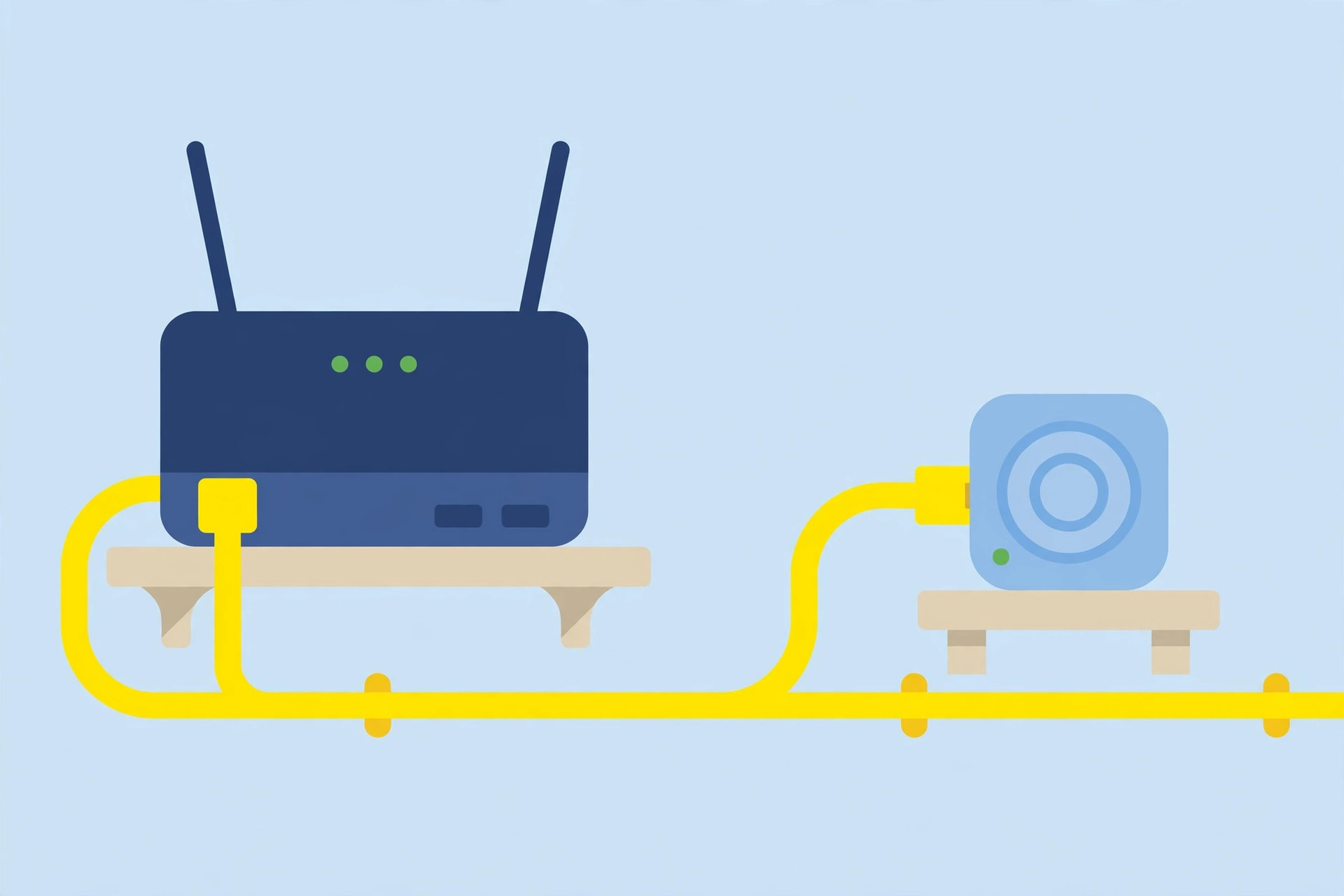
A mesh system has two separate conversations going on. One is with your phone, laptop, and TV. The other, the backhaul, is the nodes talking to each other, carrying your traffic back to the router and out to the internet. On most systems the backhaul runs over Wi-Fi, which means it shares the same airtime as everything else, weakens with every wall between nodes, and loses speed at each wireless hop. Ethernet backhaul moves that second conversation onto a cable. TP-Link's documentation for its Deco systems puts the benefit plainly: traffic between wired units travels over the cable instead of Wi-Fi, so none of the wireless bandwidth is spent on node-to-node traffic, latency drops, and there is no speed loss from a wireless hop. If your house has Ethernet jacks in the walls, or you can run cable along baseboards or through a basement, this is the single biggest upgrade a mesh system can get, and it costs cable, not new hardware.
Choose a topology first: direct, star, or daisy-chain
There are three sensible ways to wire nodes, and the right one depends on where your cables can go. The rules differ subtly between a mesh system running as your router and one running in access-point (AP) mode behind another router, so note which mode yours uses before you start plugging things in.
| Topology | How it wires up | Best for | Watch out for |
|---|---|---|---|
| Direct | One cable from the main unit's LAN port straight to one satellite | A single far room, an office or bedroom over the garage | Uses a LAN port for one node only; no room to grow |
| Star through a switch | Main unit's LAN port feeds an unmanaged gigabit switch; every node gets its own cable home to the switch | Most houses, especially ones with a central wiring point or several rooms to cover | In router mode, satellites must hang off the main unit's LAN side (directly or via that switch), wiring them to a different router's ports can create a network loop, per TP-Link's Deco guidance |
| Daisy-chain | Node wired to node wired to node, in a line | Long, thin layouts, hallways, additions, where one cable path is all you have | TP-Link documents unit-to-unit wiring for AP mode, where satellites can connect to any unit; in router mode, keep satellites on the main unit's LAN side instead |
You do not have to wire every node. TP-Link confirms wired and wireless backhaul can be mixed in the same network, so wire the two nodes that serve the busiest rooms and let a third node in a low-traffic corner stay wireless. Prioritize the longest, weakest wireless hops, those gain the most.
Pick the cable: Cat5e is fine, Cat6 is the sensible default
Backhaul runs are ordinary Ethernet runs, and the standard category ratings apply. Verified against published cable specifications (checked October 13, 2026):
| Cable | Bandwidth | Speed and distance | Verdict for backhaul |
|---|---|---|---|
| Cat5e | 100 MHz | 1 Gbps up to 100 m (328 ft) | Fine for gigabit nodes, including cable already in the walls of many homes |
| Cat6 | 250 MHz | 1 Gbps up to 100 m; 10 Gbps up to about 55 m; 2.5/5 Gbps over the full 100 m | The sensible default for new runs, headroom for multi-gig nodes later |
| Cat6a | 500 MHz | 10 Gbps up to the full 100 m | Only worth it for long runs you never want to redo, or known 10 Gbps gear |
Two practical notes. First, the 100-metre channel limit applies at gigabit speeds regardless of category, and almost no house run comes close to it, distance is rarely the constraint at home. Second, ignore inflated category claims on bargain cable: a run is only as good as its terminations, so a properly crimped Cat5e jack beats a sloppy Cat6 one. If the house already has in-wall cabling, check what is printed on the jacket in the basement or panel before buying anything. Cat5e in the wall is already a gigabit backhaul waiting to be used.
Mesh node or standalone access point? A quick decision framework
Wiring helps two different kinds of hardware, and they are not interchangeable:
- Wire the mesh nodes you own if your system supports Ethernet backhaul and you are happy with its app and features. Same network name everywhere, managed in one place, and nodes can fall back to wireless backhaul if a cable is unplugged. This is the default choice.
- Wire a standalone access point (or an old router switched to AP mode) if you only need one distant room covered, do not want to buy into a mesh ecosystem, or want a cheap wired extension in a workshop or garage. The trade-off: roaming between the main router and a separately-managed AP is usually less seamless, and you manage two sets of settings.
- Skip wiring entirely if the weak spot is a single room next door to the router, moving the node or the router is cheaper than cable. Wiring earns its keep across floors, through masonry, or over distances where the wireless backhaul itself is the weak link.
The wiring procedure, step by step
The order matters more than the cabling. Every major vendor's version of this procedure starts the same way: the wireless link comes first, the cable second.
- Set up every node wirelessly, in its final room. Add each unit in the system's app and let it join the mesh over Wi-Fi. TP-Link's Deco instructions are explicit: set up all units wirelessly with the app first, then connect the Ethernet cables, the wired backhaul activates on its own once the cable is in.
- Run and test the cable before it disappears behind furniture. A cable that negotiates only a slow link, or none at all, is the most common reason a node silently stays wireless. If you have a laptop with an Ethernet port, plug it into the far end first and confirm it connects.
- Connect the switch, if your topology uses one. Cable from the main unit's LAN port to any port on an unmanaged gigabit switch. Keep it unmanaged unless you know you need otherwise: owners of Google Nest and Google Wifi systems report in Google's community forum that managed switches can interfere with the spanning-tree behaviour those systems use on their mesh links, and the standing advice there is an unmanaged switch, or disabling spanning-tree handling on a managed one.
- Wire one node at a time. NETGEAR's community guidance for Orbi systems gives the same rhythm: with satellites already set up over Wi-Fi, connect one satellite to its Ethernet cable, wait several minutes for it to switch over, confirm it, then do the next. Doing them all at once makes failures impossible to isolate.
- Check whether your brand needs a toggle. Deco units switch automatically; AmpliFi does not. AmpliFi's official help describes pairing the unit wirelessly first, then opening its settings in the app and turning on the Ethernet Backbone option, then saving. If a node stubbornly shows wireless, look in its per-node settings for a backhaul or backbone switch before re-cabling.
- Re-run a speed test standing next to each wired node and compare it with the test beside the main router. A wired node should deliver speeds in the same neighbourhood as the main unit, minus your internet plan's ceiling.
What success looks like
Success is visible, not just felt. In the system's app, each wired node should report its connection type as wired or Ethernet: TP-Link points Deco owners to the app's network map, where tapping a satellite shows how it is connected, and notes that the Wi-Fi backhaul between wired units disconnects once the cable takes over. On Orbi systems, the Attached Devices list should show the satellite's connection type as wired. Then the felt part: speed tests near a far node roughly match the main router's, and video calls from that room stop depending on which way the wireless wind is blowing.
If a node still shows wireless after ten minutes, work this list in order: swap in a known-good cable (NETGEAR's community moderators name a bad cable as the first suspect); confirm the cable lands on the main unit's LAN side, not on ports belonging to a separate ISP router in router mode; remove any managed switch from the path and test direct; check for a per-brand backhaul toggle (step 5 above); and only then move the node closer and re-pair it wirelessly before wiring it again.
FAQ
Does Ethernet backhaul help if my internet plan is slow? It helps everything inside the house, streaming between rooms, calls from the far office, up to your plan's speed. It cannot make the connection coming into the house faster than the plan you pay for.
Can I wire just one of three nodes? Yes. Mixed wired and wireless backhaul in one network is explicitly supported, per TP-Link's Deco documentation. Wire the busiest or furthest node first.
What if a cable gets unplugged later? On systems that activate wired backhaul automatically, the node falls back to its wireless link, coverage continues, just slower. That fallback is also why a silently failed cable is easy to miss, and why the app check in the procedure is worth doing.